Introduction
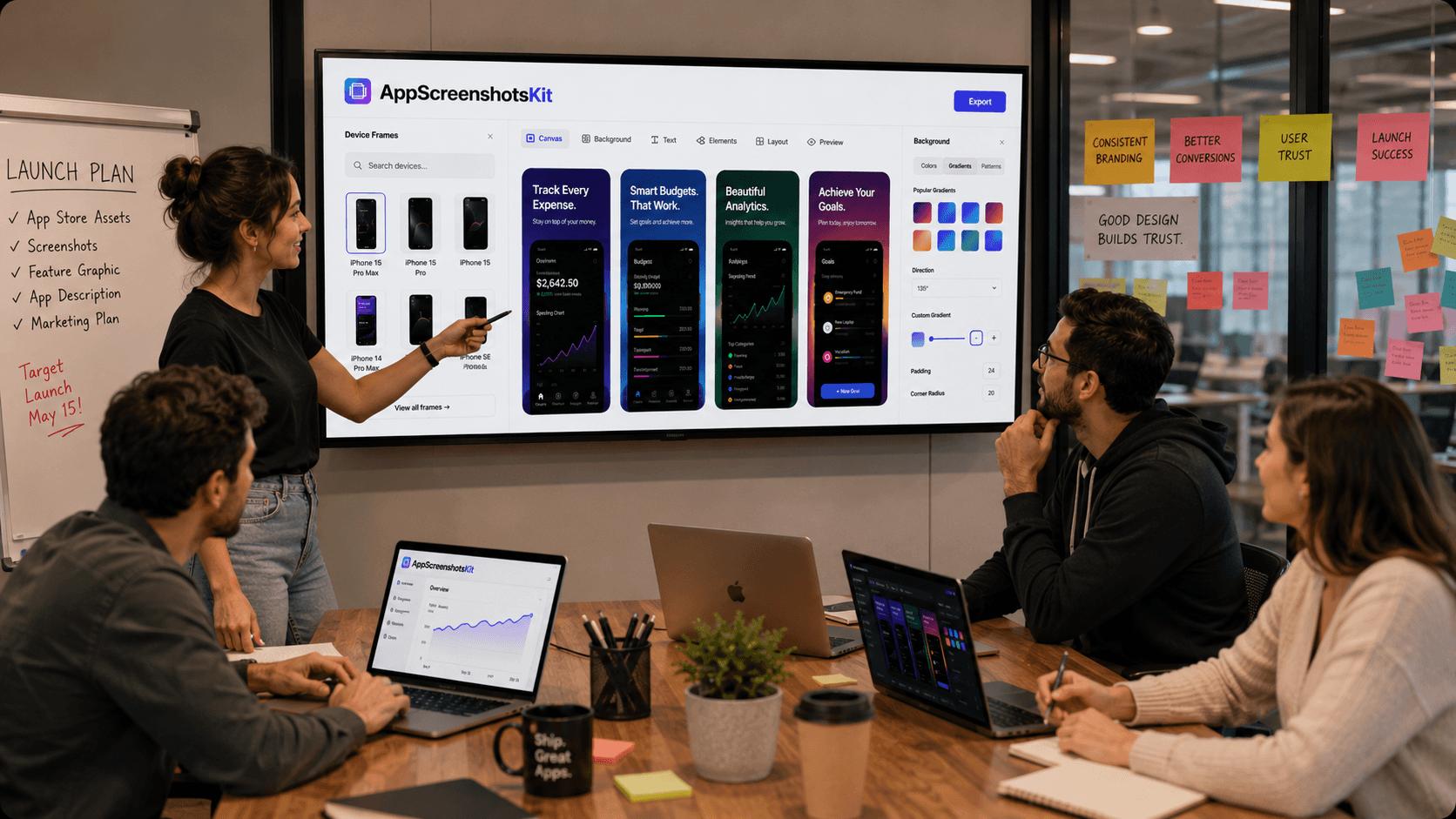
App launches succeed when the whole team is aligned - when the designer, marketer, developer, and product manager all look at the same screenshots and say 'yes, this represents what we built.' Getting to that alignment efficiently is harder than it sounds.
AppScreenshotsKit's no-account, browser-based model makes it uniquely suited to collaborative workflows - anyone on the team can open it, create, review, and export without credentials or software installation.
Why Screenshot Consistency Is a Team Challenge
When different team members create screenshots independently - one using Figma, one using Canva, one using a paid tool - the result is visual inconsistency across the App Store listing. Different fonts, different background styles, different device frames. It signals a fragmented product team to users who notice.
A unified visual template applied through a shared tool solves this. AppScreenshotsKit serves as that shared tool.
Collaborative Roles in the AppScreenshotsKit Workflow
- Product Manager: Defines the screenshot strategy - which features to showcase, in which order, with what benefit messaging
- Designer: Creates the visual template - selects device frame, background style, font, and color palette in AppScreenshotsKit
- Developer: Provides raw screenshots from Xcode/Android Studio at correct resolutions
- Marketer: Writes the benefit-focused headlines for each screenshot
- QA: Reviews final exports at thumbnail scale before submission
Creating a Shared Visual Template in AppScreenshotsKit
- Decide on device frame - agree as a team (e.g. iPhone 16 Pro Max Natural Titanium)
- Choose background style - gradient, solid, or pattern; document the specific settings
- Select typography - one Google Font for headlines, one for subtext
- Define color palette - note exact hex codes for background gradient stops
- Create a reference screenshot - export it, share in Slack as the visual standard
- All team members apply the same settings to their assigned screenshots
- Collect all exports, review for consistency, submit
The No-Account Advantage for Teams
Shared tools that require accounts create friction: who manages the subscription? Who has admin access? What happens when someone leaves the team? AppScreenshotsKit eliminates all of this.
Any team member opens the URL, applies the agreed template settings, and exports. No credentials to share, no subscription seats to manage, no access revocation required.
Team Sharing Tip
Save your AppScreenshotsKit settings as a JSON file (coming soon) and share it in your team's Notion or Confluence documentation. Any team member can load the exact template settings with one click, ensuring perfect visual consistency across the entire team.
Conclusion
The most successful app launches are team efforts - and AppScreenshotsKit is built to support that team effort without creating new coordination overhead. No accounts to manage, no software to install, no design skills required of non-designers.
Your team's best work deserves a unified visual presentation. AppScreenshotsKit makes that unity achievable in a single meeting.
Align your team on App Store visuals - AppScreenshotsKit.com