Introduction
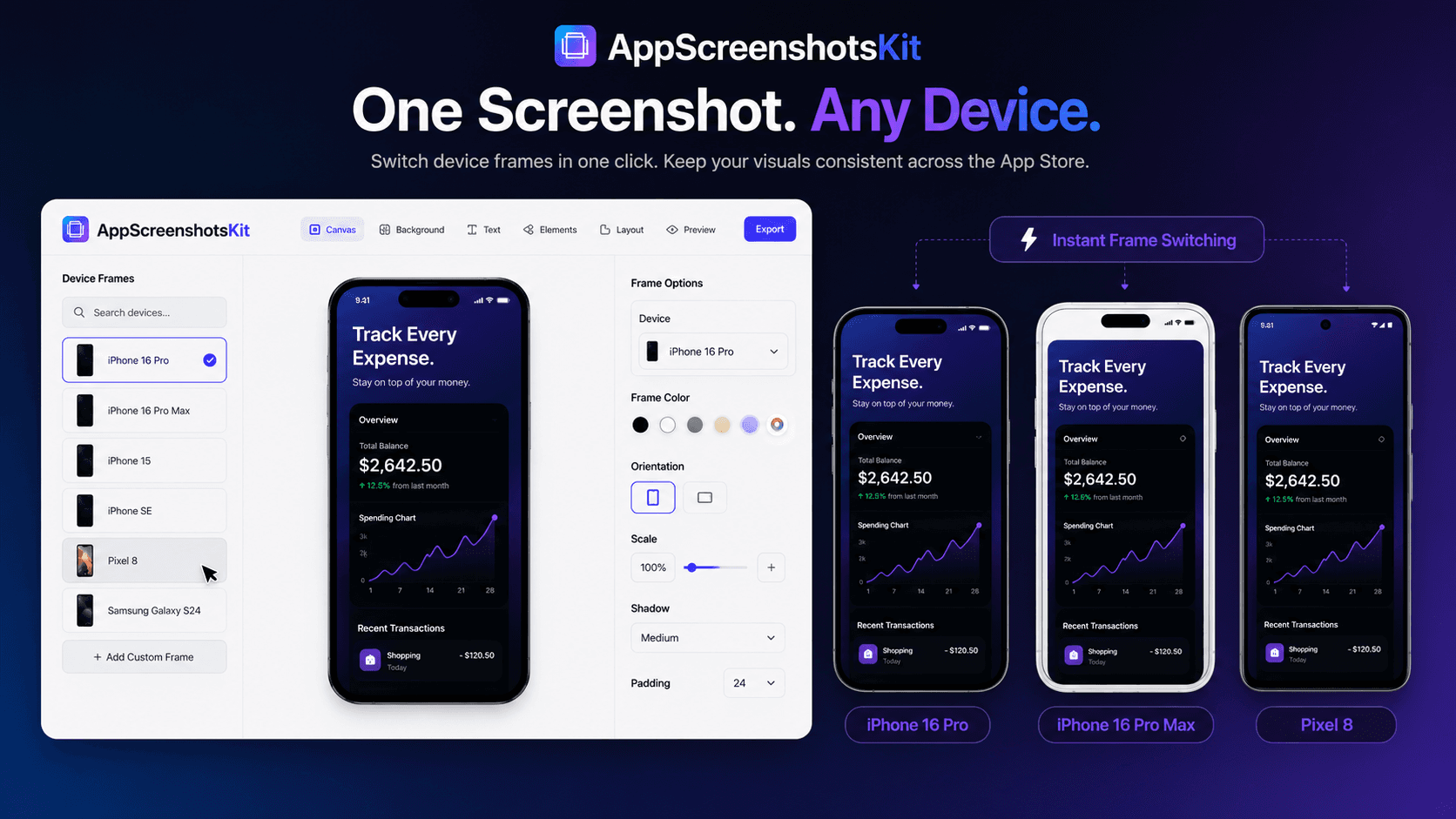
One of the most powerful - and most underused - features in AppScreenshotsKit is instant device frame switching. Upload your screenshot once, then cycle through every available device frame without re-uploading, re-positioning, or re-designing anything.
This single capability transforms how quickly you can test different visual presentations for your app.
How Frame Switching Works in AppScreenshotsKit
- Upload your app screenshot to the canvas
- Select any device frame from the panel - it wraps your screenshot instantly
- Click a different frame - same screenshot, different device, zero re-work
- Switch from iPhone to Android to iPad to Clay in seconds
- Export each variant if needed - or choose the best and move on
Why Frame Color Psychology Matters
The color of the device frame you choose influences how users perceive your app's positioning:
- Black / Space Black frames - premium, powerful, serious. Best for finance, security, productivity apps.
- White / Starlight frames - clean, approachable, friendly. Best for wellness, lifestyle, social apps.
- Gold / Natural Titanium - aspirational, premium, luxury-adjacent. Best for high-ticket or creator apps.
- Clay (grey) - neutral, design-forward, lets the UI speak. Best for design tools, developer tools.
- Blue / Colored frames - distinctive, energetic, stand out. Best for entertainment, gaming, creative apps.
The A/B Testing Workflow Using Frame Switching
AppScreenshotsKit's frame-switching feature is purpose-built for visual A/B testing:
- Create your base design - screenshot, background, headline
- Export with Frame A (e.g. Black iPhone)
- Switch to Frame B (e.g. White iPhone) - click once
- Export with Frame B - same design, different frame
- Upload both to App Store Connect's product page testing
- Run for 14+ days, adopt the winner
All Available Device Frames at a Glance
- iPhone 16 Pro Max: Natural Titanium, Black Titanium, White Titanium, Desert Titanium
- iPhone 15 Pro: Natural, Black, White, Blue
- iPhone 14: Space Black, Silver, Gold, Purple, Red
- iPad Pro M4: Space Grey, Silver (portrait & landscape)
- Google Pixel 9 Pro: Obsidian, Porcelain, Hazel, Rose Quartz
- Samsung Galaxy S24 Ultra: Titanium Black, Titanium Grey
- Clay Phone: Universal grey clay (iOS & Android compatible)
- Clay Tablet: Universal clay tablet frame
When to Show Multiple Device Frames Together
Sometimes the most powerful screenshot isn't a single device - it's multiple devices shown together. AppScreenshotsKit's multi-device layout lets you show iPhone + iPad, or iPhone + Android, in a single screenshot frame.
This signals cross-platform availability, increases perceived app quality, and fills the screenshot canvas more dynamically than a single device.
Pro Tip
For cross-platform apps, always include at least one screenshot showing both iOS and Android devices together. It communicates 'we've built this properly for both platforms' in a single glance.
Conclusion
Device frame switching isn't just a convenience feature - it's a strategic tool for finding the visual presentation that resonates most with your target audience. AppScreenshotsKit makes that exploration instant, free, and unlimited.
Swap frames. Find your best look. Launch with confidence.
Try instant device frame switching free - AppScreenshotsKit.com
Open Editor Free