Introduction
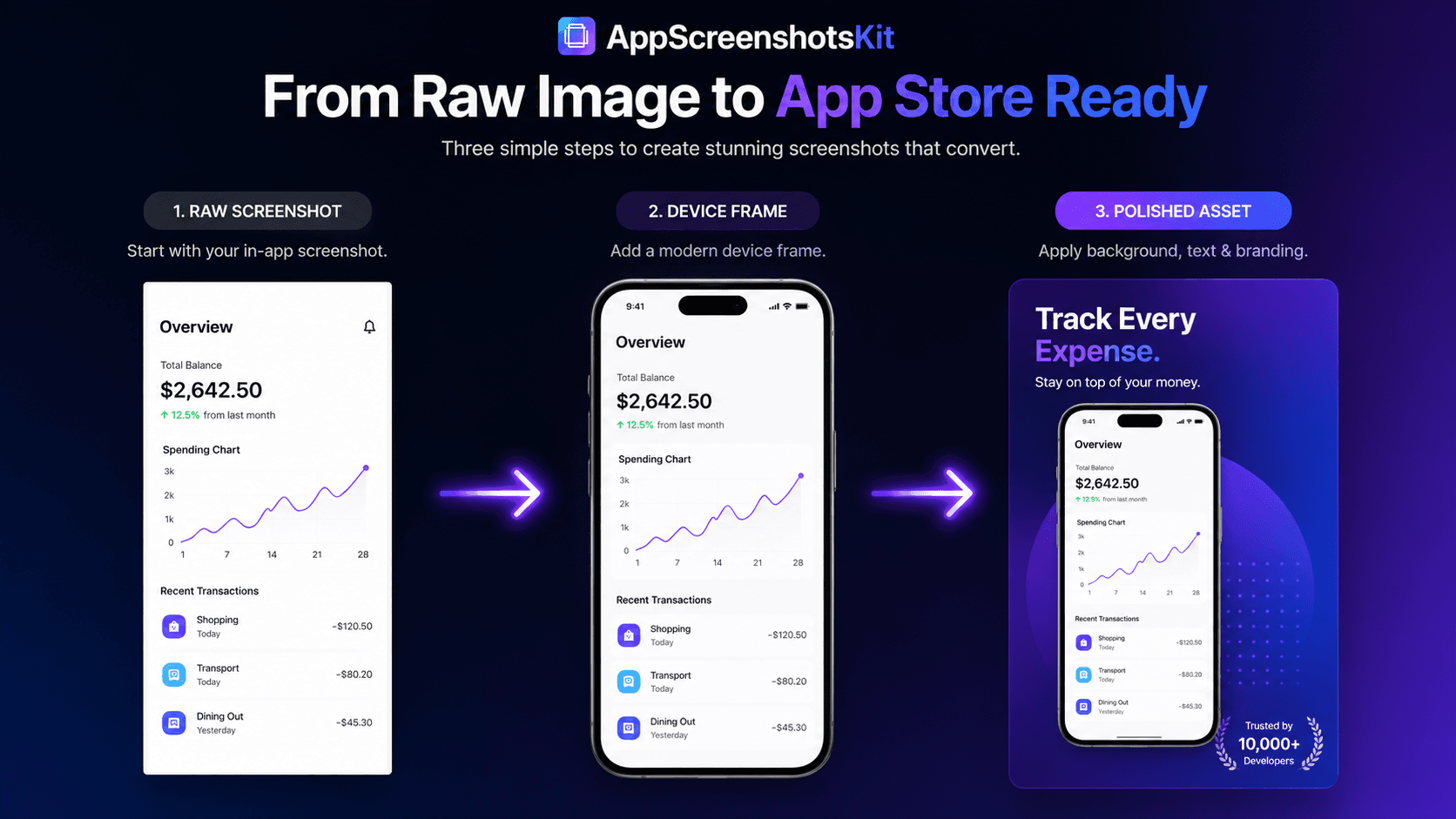
There's a before and an after in every great App Store listing. The before is a flat screenshot exported from Xcode or Android Studio. The after is a professional visual that tells a story, establishes brand, and converts browsers into downloaders.
The process of getting from before to after used to take hours. AppScreenshotsKit compresses it to minutes.
Step 1: The Raw Screenshot
Your raw screenshot comes from one of three places:
- Xcode Simulator - highest quality, correct resolution, clean UI state
- Android Studio AVD - equivalent quality for Android screenshots
- Physical device screenshot - good quality, may require slight cropping
- Framer or Figma prototype screenshot - ideal if you want to show aspirational UI states
Step 2: Upload & Frame (60 seconds)
- Drag your raw screenshot onto the AppScreenshotsKit canvas
- The tool auto-detects screenshot dimensions and suggests matching device frames
- Click your chosen frame - iPhone 16 Pro Max Natural Titanium recommended for iOS
- Your screenshot auto-scales to fit the device screen area perfectly
- Adjust scale or position if needed using the on-canvas handles
Step 3: Background Application (30 seconds)
- Open the background panel
- Choose your category - Gradient, Solid, Pattern, or Custom
- Click a preset - it applies instantly
- Adjust colors if using a custom gradient - live preview updates
- Consider contrast against your device frame color
Step 4: Text Overlay (60 seconds)
- Click the text tool
- Type your benefit-focused headline - 5 words or fewer
- Select a Google Font - Inter Bold is a safe, universal choice
- Adjust size - headline should be readable at 40px displayed size
- Position text - above or below the device, never overlapping the screen area
- Add subtext if needed - lighter weight, smaller size, secondary information
Step 5: Export (10 seconds)
- Click Export
- Select your target platform - App Store (iOS), Google Play, or Both
- Choose quality - PNG maximum quality recommended
- Download triggers automatically - ZIP file containing all required sizes
- Rename files for App Store Connect - e.g. screenshot_01_6.7.png
Total Time: Under 4 Minutes
Upload to export for a single polished App Store screenshot takes under 4 minutes with AppScreenshotsKit. A full 8-screenshot set takes under 30 minutes. No design skills required.
Common Mistakes to Avoid
- Using screenshots from an empty app state - always populate with realistic data
- Over-crowding with text - one headline per screenshot, maximum
- Inconsistent device frames across the set - pick one and stick with it
- Low-resolution source screenshots - always export at 3x from Simulator
- Forgetting to check thumbnail readability - view at 25% scale before finalizing
Conclusion
From raw to polished. From Simulator to App Store. From 'screenshot' to 'visual'. The transformation is real, it's fast, and it's free with AppScreenshotsKit.
Your app is already built. Your screenshots are 4 minutes away.
Transform your raw screenshots for free - AppScreenshotsKit.com
Open Editor Free