Introduction
You've mastered the basics - upload, frame, background, headline, export. Your screenshots look professional. But 'professional' is table stakes in a competitive App Store category. To stand out, you need to go beyond the template.
These advanced techniques will elevate your AppScreenshotsKit designs from good to genuinely memorable.
Advanced Technique 1: The Composite UI Screenshot
Instead of a single full-screen UI shot, create a composite: show the same device frame with two or three UI panels visible side by side within the screenshot area. This communicates feature breadth in a single image and creates visual interest that a standard full-screen screenshot lacks.
Pro Tip
Create your composite in Figma or Sketch first - arrange 2-3 UI panels within a device-sized canvas, export as PNG, then use that composite as your 'screenshot' in AppScreenshotsKit.
Advanced Technique 2: The Problem-Solution Pair
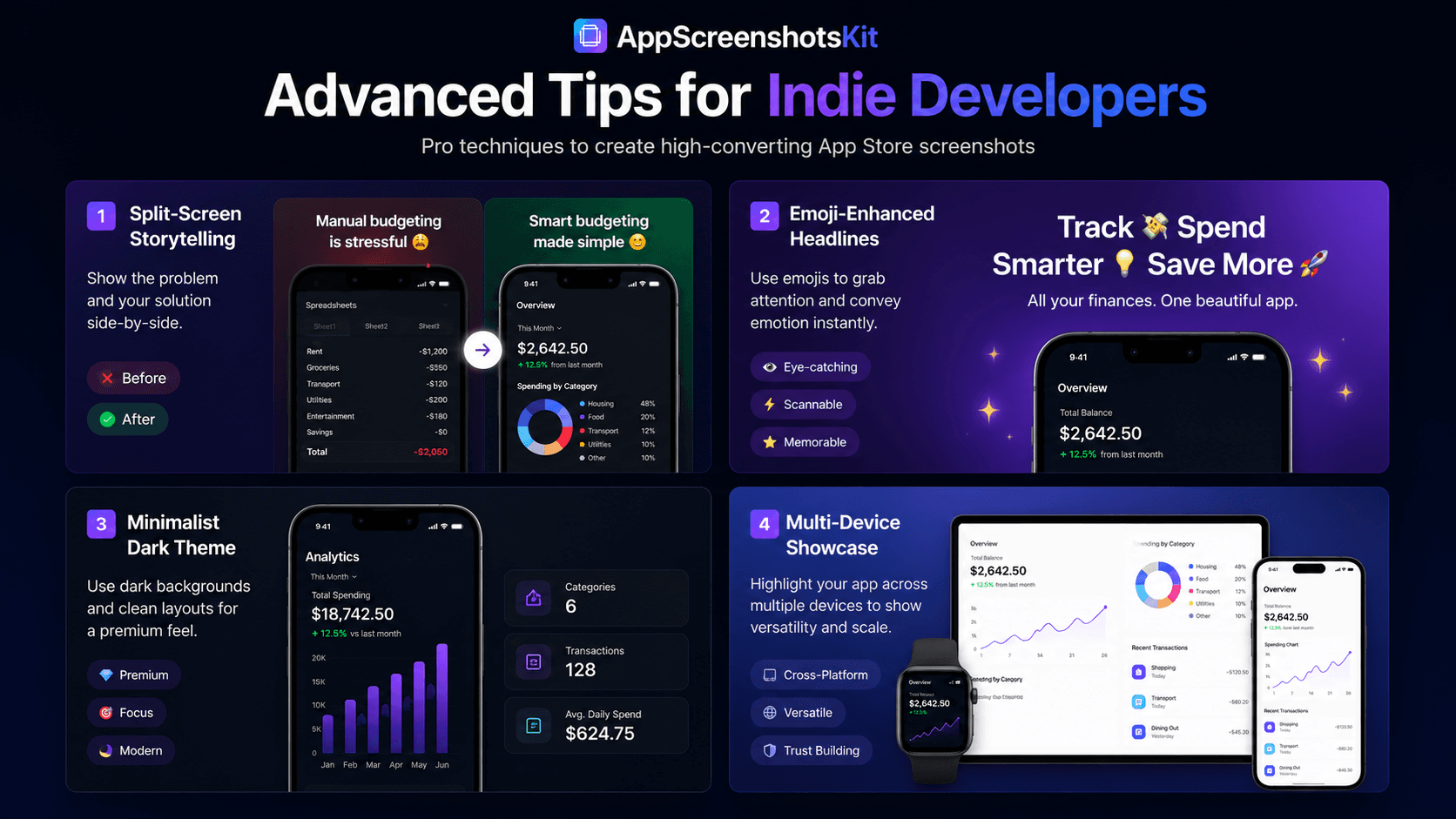
Create a screenshot set where Screenshot 1 shows the problem (a competitor app's confusing UI, a spreadsheet full of manual data, a calendar with no time blocked) and Screenshot 2 shows your app's solution. This before/after storytelling in two frames is one of the most effective conversion patterns in the App Store.
Advanced Technique 3: Emoji-Enhanced Headlines
- Add a single relevant emoji before or after your headline text
- ✅ Track Every Expense - reinforces the completion/success feeling
- 💰 Save More Every Month - reinforces the financial benefit
- 🚀 Launch Your Side Project - reinforces the momentum feeling
- Emoji renders correctly on both App Store platforms
- Don't use more than one emoji per headline - diminishing returns apply
Advanced Technique 4: The Annotation Technique
Add small annotation labels to specific UI elements within your screenshot - arrows pointing to key features with brief labels. This is particularly effective for complex apps where the UI doesn't self-explain.
Create the annotations in Figma before importing to AppScreenshotsKit, or use AppScreenshotsKit's text tool creatively with small, positioned text elements.
Advanced Technique 5: Dark Mode and Light Mode Variants
Create two complete screenshot sets - one in your app's light mode, one in dark mode. Use different background palettes for each: lighter gradients for light mode, darker gradients for dark mode. This communicates that your app supports both appearance modes and shows the UI in both contexts.
This also gives you natural A/B test material: dark mode screenshots frequently outperform light mode in A/B tests for productivity, finance, and developer tools.
- Dark mode: near-black background, bright UI, high contrast - premium
- Light mode: light gradient background, clean UI - approachable
- Test both with App Store Connect product page optimization
- Different audiences respond differently - data tells you which wins
Advanced Technique 6: The Achievement Screenshot
For apps with gamification, streaks, achievements, or milestones - screenshot the 'victory state'. Show the confetti, the badge, the streak counter, the completion screen. Users aspire to that moment. Showing it in your screenshots sells the emotional payoff, not just the feature set.
Emotional Outcome > Feature List
The most converting screenshots in the App Store don't show features - they show feelings. The satisfaction of an organized inbox. The pride of a maintained streak. The relief of a tracked budget. Find the emotional outcome your app delivers and screenshot it.
Conclusion
The basics get you professional. The advanced techniques get you memorable. AppScreenshotsKit's flexibility - instant frame switching, live text editing, one-click background swapping - makes these advanced techniques as fast to implement as the basics.
Go beyond the template. Your app is unique. Your screenshots should be too.
Apply advanced techniques to your screenshots - free at AppScreenshotsKit.com
Open Editor Free