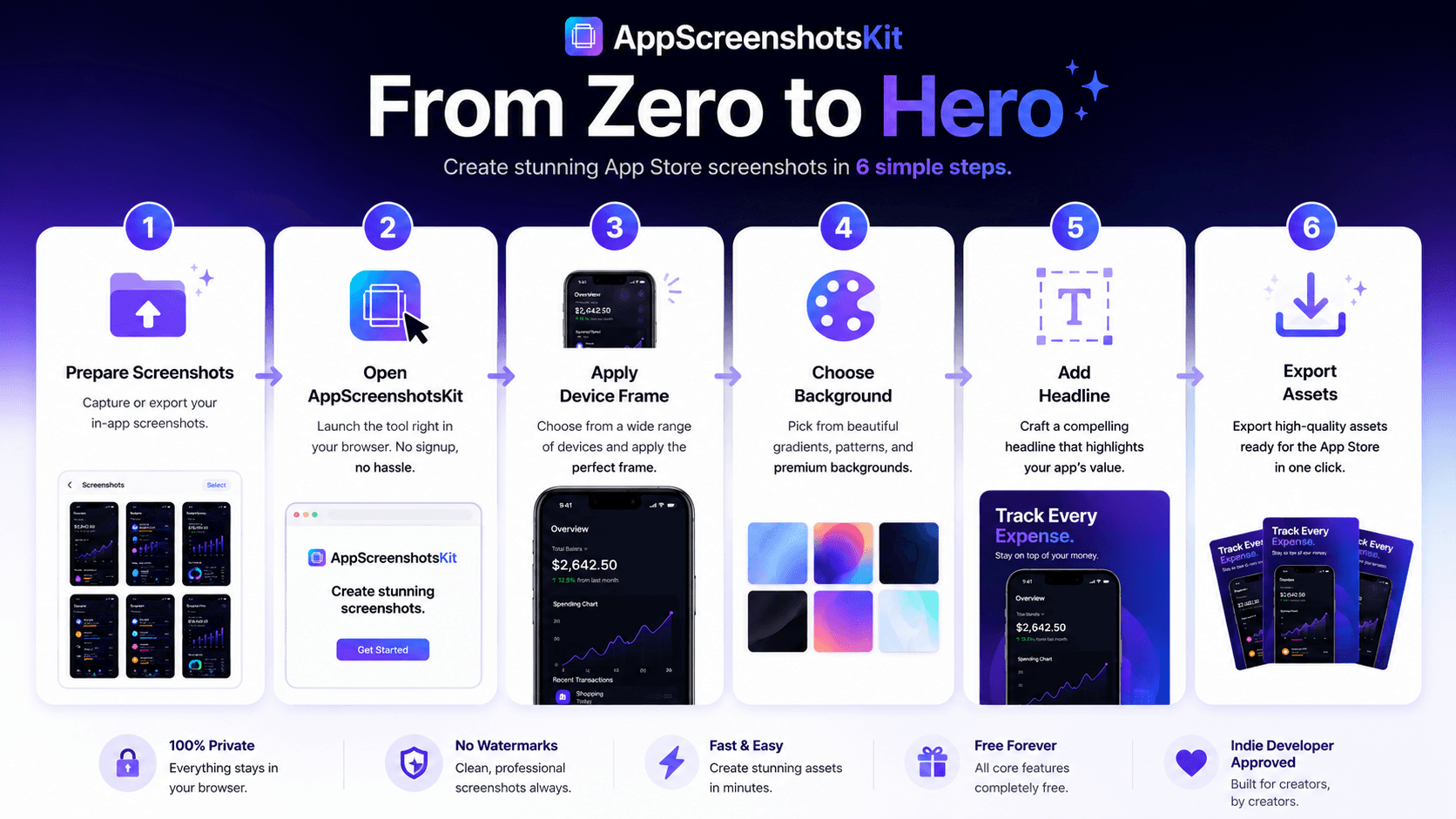
Introduction
You've never used a screenshot design tool before. You don't have design skills. You just need professional-looking App Store screenshots and you need them today. This guide is written for you.
By the end of this step-by-step walkthrough, you'll have a complete, professional App Store screenshot set ready for submission - created entirely in AppScreenshotsKit, at zero cost.
Before You Start: What You Need
- Your raw app screenshots - exported from Xcode Simulator (iOS) or Android Studio AVD (Android)
- A laptop or desktop with a modern browser (Chrome, Safari, Firefox, or Edge)
- Your app's primary brand color - if you know it, great; if not, we'll choose together
- Your app's core value proposition in one sentence - we'll turn this into headlines
- About 30 minutes of focused time
Phase 1: Preparing Your Raw Screenshots (10 minutes)
For iOS apps (Xcode Simulator):
- Open Xcode and launch your app in Simulator
- Set the Simulator to iPhone 16 Pro Max (6.7" - the required size)
- Navigate to the 5-8 key screens you want to showcase
- Press Cmd+S in Simulator to save each screenshot
- Check saved location: ~/Desktop or ~/Documents by default
- Verify resolution: should be 1290×2796 px at 3x scale
Phase 2: Opening AppScreenshotsKit (30 seconds)
- Open your browser
- Navigate to AppScreenshotsKit.com
- The editor loads instantly - no login, no setup, no tutorial popup
- You'll see a blank canvas on the left, controls on the right
- Drag your first raw screenshot directly onto the canvas
Phase 3: Applying Your Device Frame (2 minutes)
- In the right panel, click 'Device Frame'
- Browse the library - scroll to find iPhone 16 Pro Max
- Choose a color: Natural Titanium for most apps, Black for premium/dark apps
- Click the frame - your screenshot fits automatically
- If the screenshot doesn't align perfectly, use the on-canvas handles to adjust
Phase 4: Choosing and Applying Your Background (3 minutes)
- Click 'Background' in the right panel
- Start with Gradients - they work for almost every app category
- Find a gradient that matches your app's color: try navy, purple, or teal
- If your app has a brand color, enter its hex code in the gradient picker
- Consider your app category: dark for productivity/finance, bright for lifestyle/fitness
- Confirm the background looks good against your device frame color
Phase 5: Adding Your Headline Text (3 minutes)
- Click the Text tool in the top toolbar
- A text box appears on the canvas
- Type your benefit-focused headline - 5 words or fewer
- Hint: Start with an action verb: Track, Build, Find, Save, Achieve
- Select font: Inter Bold is universally safe and readable
- Set color to white if your background is dark (90% of cases)
- Position text above or below the device - not overlapping the screen
- Check readability by zooming your browser to 50% (Ctrl/Cmd + Minus)
Phase 6: Exporting Your Screenshot (1 minute)
- Click 'Export' in the top right
- Select platform: App Store (iOS), Google Play (Android), or Both
- Format: PNG, Maximum Quality
- Click Download
- A ZIP file downloads containing all required sizes
- Open the ZIP: you'll find files named by dimension - ready for App Store Connect
Phase 7: Repeat for All 5–8 Screenshots (20 minutes)
Repeat Phases 3–6 for each of your remaining screenshots. Keep your settings identical across all screenshots - same frame, same background gradient, same font. Only the raw screenshot and headline copy should change.
Pro Tip
Write all your headlines before you start designing. Having them pre-written makes the process faster and ensures consistent copywriting tone across the full screenshot set.
Submitting to App Store Connect
- Log into App Store Connect
- Navigate to your app > App Store > Screenshots
- Select the 6.7" iPhone slot
- Upload all screenshots in order (1–8)
- Repeat for iPad if your app supports iPadOS
- Save - screenshots are live after your next app submission is approved
Conclusion
From zero to a complete, professional App Store screenshot set - in about 30 minutes, with zero cost, zero design skills, and zero compromise on quality. That's what AppScreenshotsKit is built to make possible for every developer.
You're not a zero anymore. You're a hero. Now ship those screenshots.
Follow this guide right now - AppScreenshotsKit.com is waiting for you
Open Editor Free